There are various types of notifications, and different notification methods are used in different situations to enhance the user experience. Below, we will discuss four commonly used notification methods: Notification, Dialog, Toast, and Snackbar.
Notification Bar (Notification)
public void showNotification() {
    // Create a notification using Notification.Builder
    NotificationCompat.Builder builder = new NotificationCompat.Builder(getApplicationContext());

    // Content displayed when the notification is first received
    builder.setTicker("Prize Notification");

    // Automatically cancel the notification when the user clicks it
    builder.setAutoCancel(true);

    // Title displayed in the notification bar
    builder.setContentTitle("Congratulations, you've won!");

    // Content displayed in the notification bar
    builder.setContentText("Your number has been selected by our company. You've won 1 million. Please contact us promptly: 139999");

    // Set a small icon (required; otherwise, the notification won't show)
    builder.setSmallIcon(R.mipmap.ic_launcher);

    // Prevent the user from dismissing the notification (can only be removed via code using the ID)
    // builder.setOngoing(true);

    // Set vibration pattern (units: milliseconds; format: [silent, vibrate, silent, vibrate...])
    builder.setVibrate(new long[]{0, 500, 500, 500});

    // Set LED light (color, duration on, duration off)
    builder.setLights(Color.BLUE, 200, 200);

    // Set notification sound (path to audio file)
    builder.setSound(Uri.fromFile(new File("/system/media/audio/ui/usb_effect.ogg")));

    // Use default notification sound, vibration, and LED
    // builder.setDefaults(NotificationCompat.DEFAULT_ALL);

    // Set priority
    builder.setPriority(NotificationCompat.PRIORITY_MAX);

    Notification notification = builder.build();
    NotificationManager manager = (NotificationManager) getSystemService(Context.NOTIFICATION_SERVICE);
    // The first parameter is the ID used to cancel the notification
    manager.notify(1, notification);
}
Requires Vibration Permission
<uses-permission android:name="android.permission.VIBRATE"/>
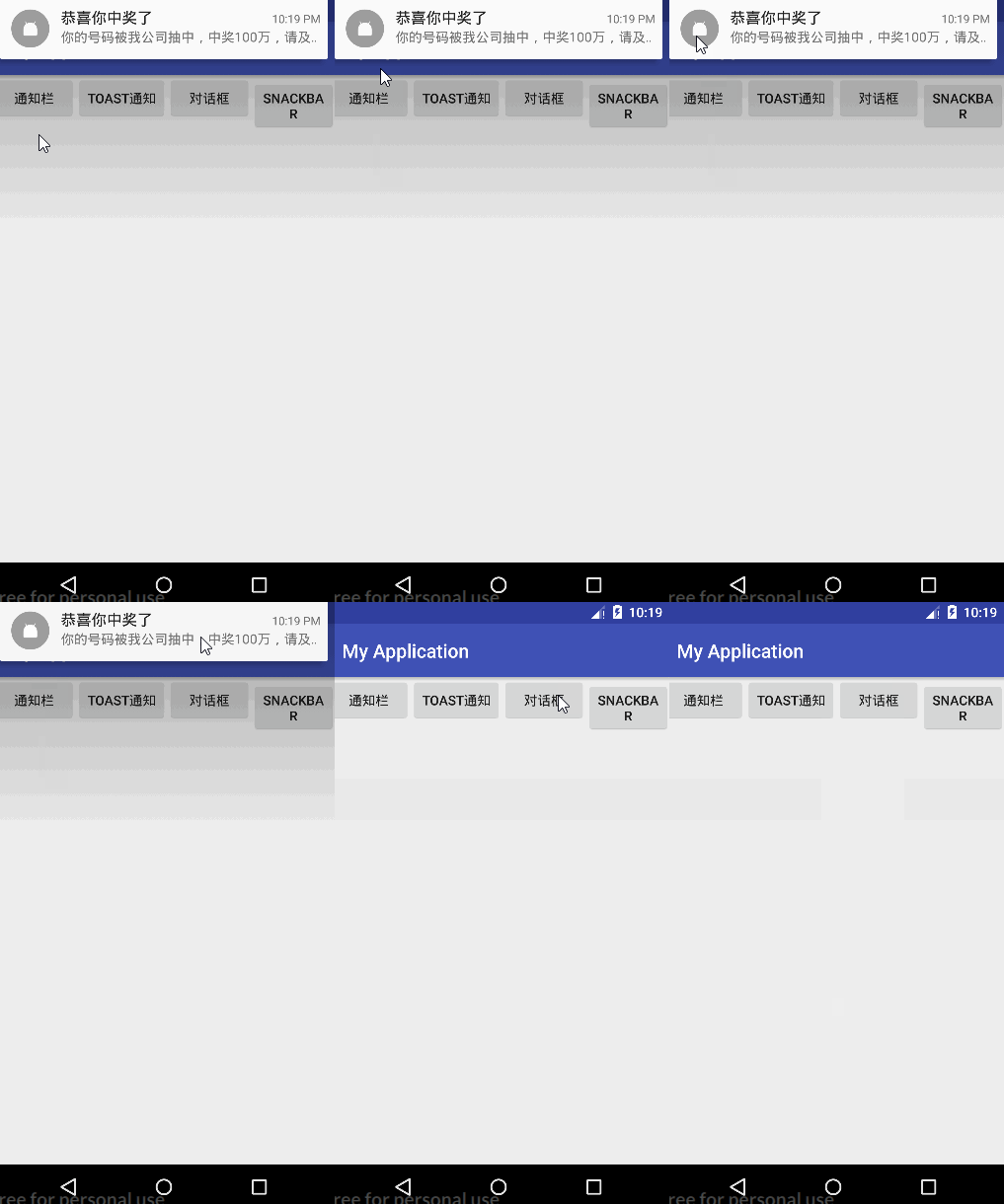
Effect Diagram
If using this in a Fragment, there is a slight difference (note the comments):
@Override
public View onCreateView(LayoutInflater inflater, ViewGroup container,
                         Bundle savedInstanceState) {
    View view = inflater.inflate(R.layout.fragment_me, container, false);
    Button button = (Button) view.findViewById(R.id.tongzhi);
    button.setOnClickListener(new View.OnClickListener() {
        @Override
        public void onClick(View v) {
            // Use getActivity() here
            Notification.Builder builder = new Notification.Builder(getActivity());
            builder.setTicker("Prize Notification");
            // builder.setAutoCancel(true); // Uncomment if needed
            builder.setContentTitle("Congratulations, you've won!");
            builder.setContentText("Your number has been selected by our company. You've won 1 million. Please contact us promptly: 139999");
            builder.setSmallIcon(R.mipmap.ic_launcher);
            builder.setOngoing(true); // Example: prevent dismissal
            Notification notification = builder.build();
            // Use getActivity() here
            NotificationManager manager = (NotificationManager) getActivity().getSystemService(Context.NOTIFICATION_SERVICE);
            manager.notify(1, notification);
        }
    });
    return view;
}
To open an Activity by clicking the notification, add the following code:
// Launch an Activity from the notification bar
Intent intent = new Intent(getApplicationContext(), Main3Activity.class);
PendingIntent pendingIntent = PendingIntent.getActivity(getApplicationContext(), 1, intent, PendingIntent.FLAG_UPDATE_CURRENT);
builder.setContentIntent(pendingIntent);
// Notification auto-cancels after opening the Activity
builder.setAutoCancel(true);
Dialog
public void showDialog() {
    AlertDialog.Builder builder = new AlertDialog.Builder(this);

    // Set dialog title
    builder.setTitle("Notification");

    // Set dialog content
    builder.setMessage("You have an important notification to handle.");

    // Set icon
    builder.setIcon(android.R.drawable.ic_dialog_alert);

    // Allow cancellation by touching outside the dialog or pressing the back key
    builder.setCancelable(true);

    // Add a custom layout (e.g., with an EditText)
    View view = View.inflate(this, R.layout.item, null);
    builder.setView(view);

    // Positive button (right side)
    builder.setPositiveButton("Confirm", new DialogInterface.OnClickListener() {
        @Override
        public void onClick(DialogInterface dialog, int which) {
            // Logic for the "Confirm" button
        }
    });

    // Negative button (left side)
    builder.setNegativeButton("Cancel", new DialogInterface.OnClickListener() {
        @Override
        public void onClick(DialogInterface dialog, int which) {
            // Logic for the "Cancel" button
        }
    });

    // Single-choice list (commented out for example)
    /*final String[] singleChoiceItems = new String[]{"Android", "Java", "PHP"};
    builder.setSingleChoiceItems(singleChoiceItems, 1, new DialogInterface.OnClickListener() {
        @Override
        public void onClick(DialogInterface dialog, int which) {
            Toast.makeText(getApplicationContext(), "You selected " + singleChoiceItems[which], Toast.LENGTH_SHORT).show();
            dialog.dismiss();
        }
    });*/

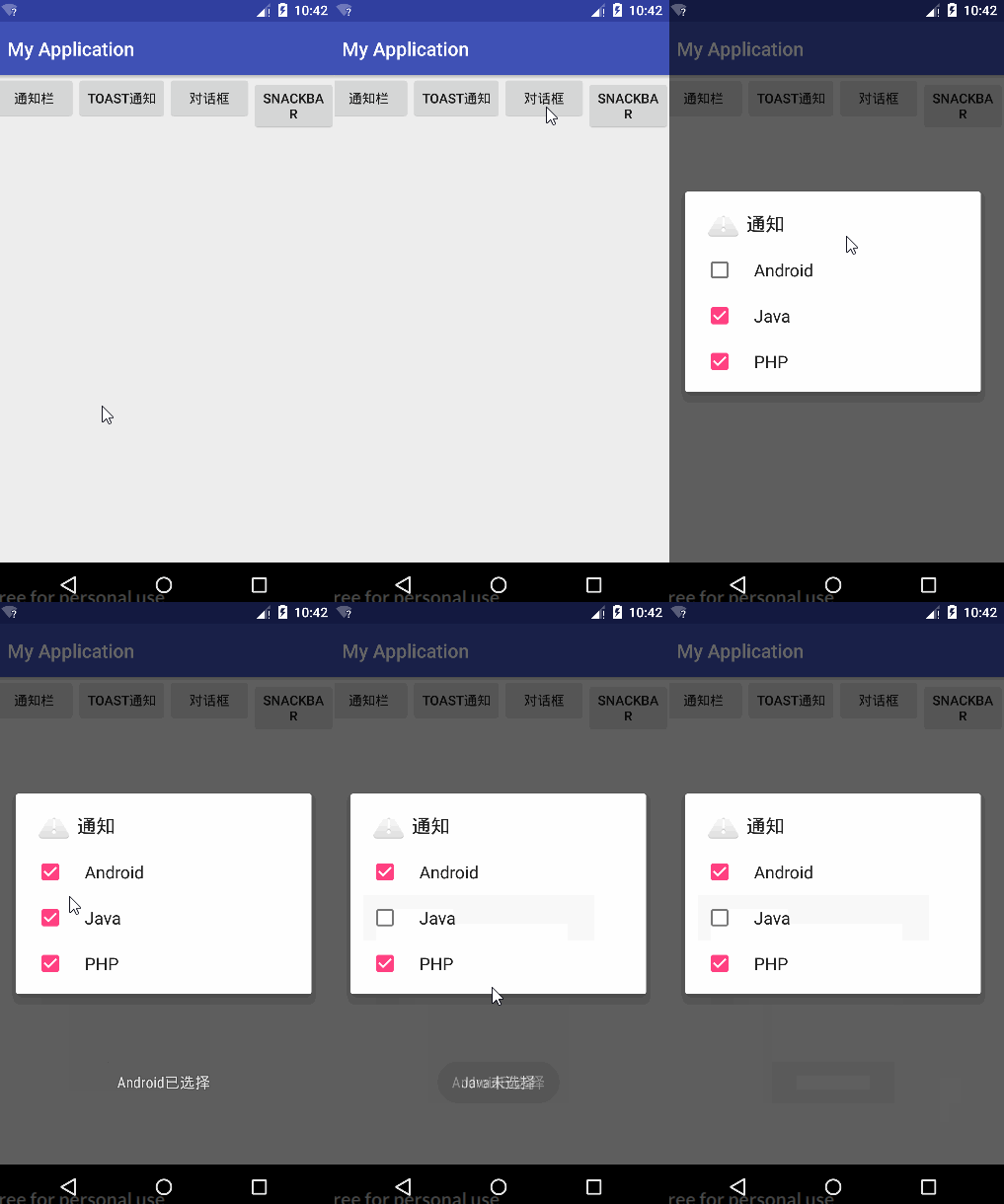
    // Multi-choice list (commented out for example)
    /*final String[] multiChoiceItems = new String[]{"Android", "Java", "PHP"};
    builder.setMultiChoiceItems(multiChoiceItems, new boolean[]{false, true, true}, new DialogInterface.OnMultiChoiceClickListener() {
        @Override
        public void onClick(DialogInterface dialog, int which, boolean isChecked) {
            String result = isChecked ? "Selected" : "Unselected";
            result = multiChoiceItems[which] + " - " + result;
            Toast.makeText(getApplicationContext(), result, Toast.LENGTH_SHORT).show();
        }
    });*/

    // Remember to call show()!
    builder.show();
}
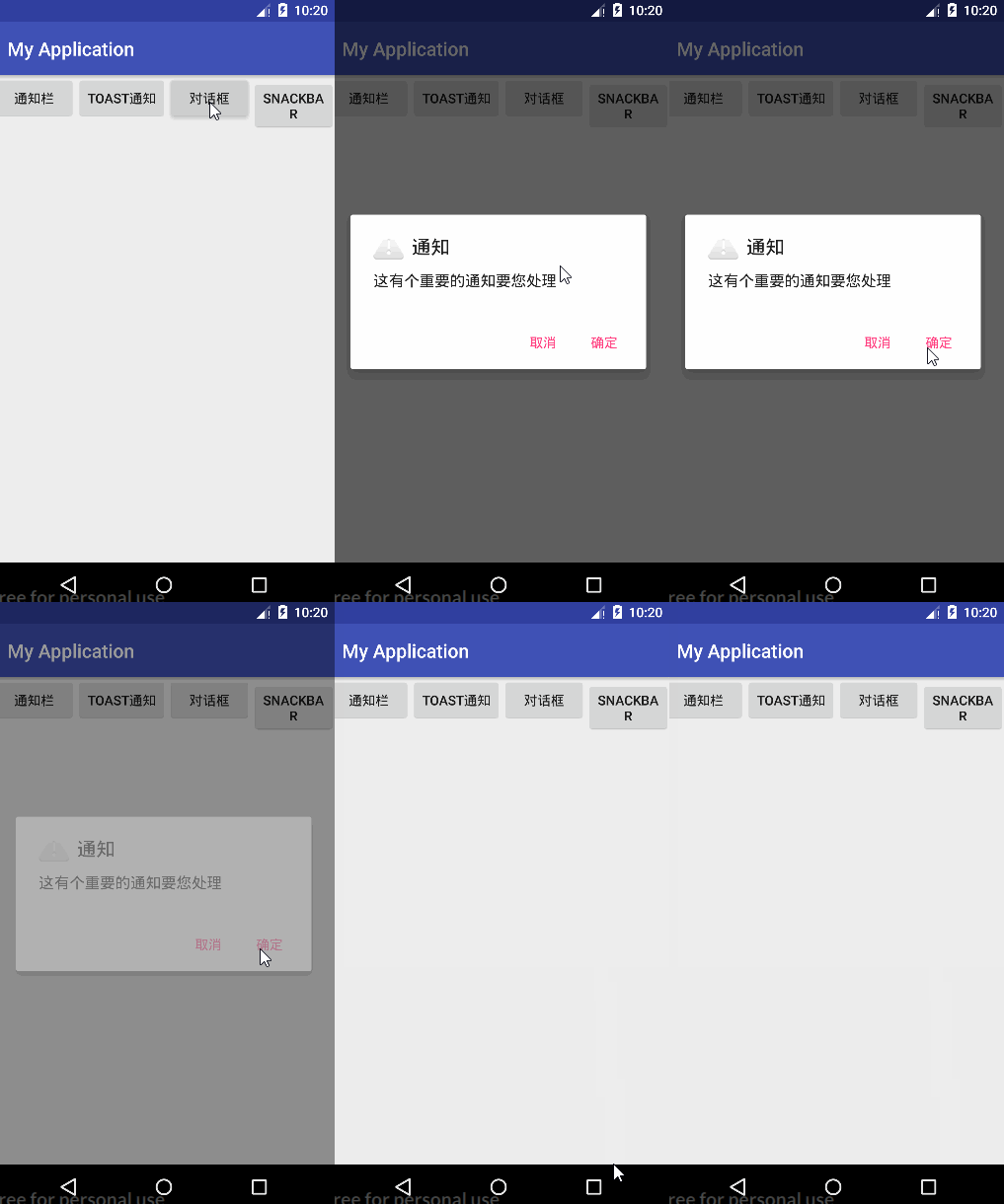
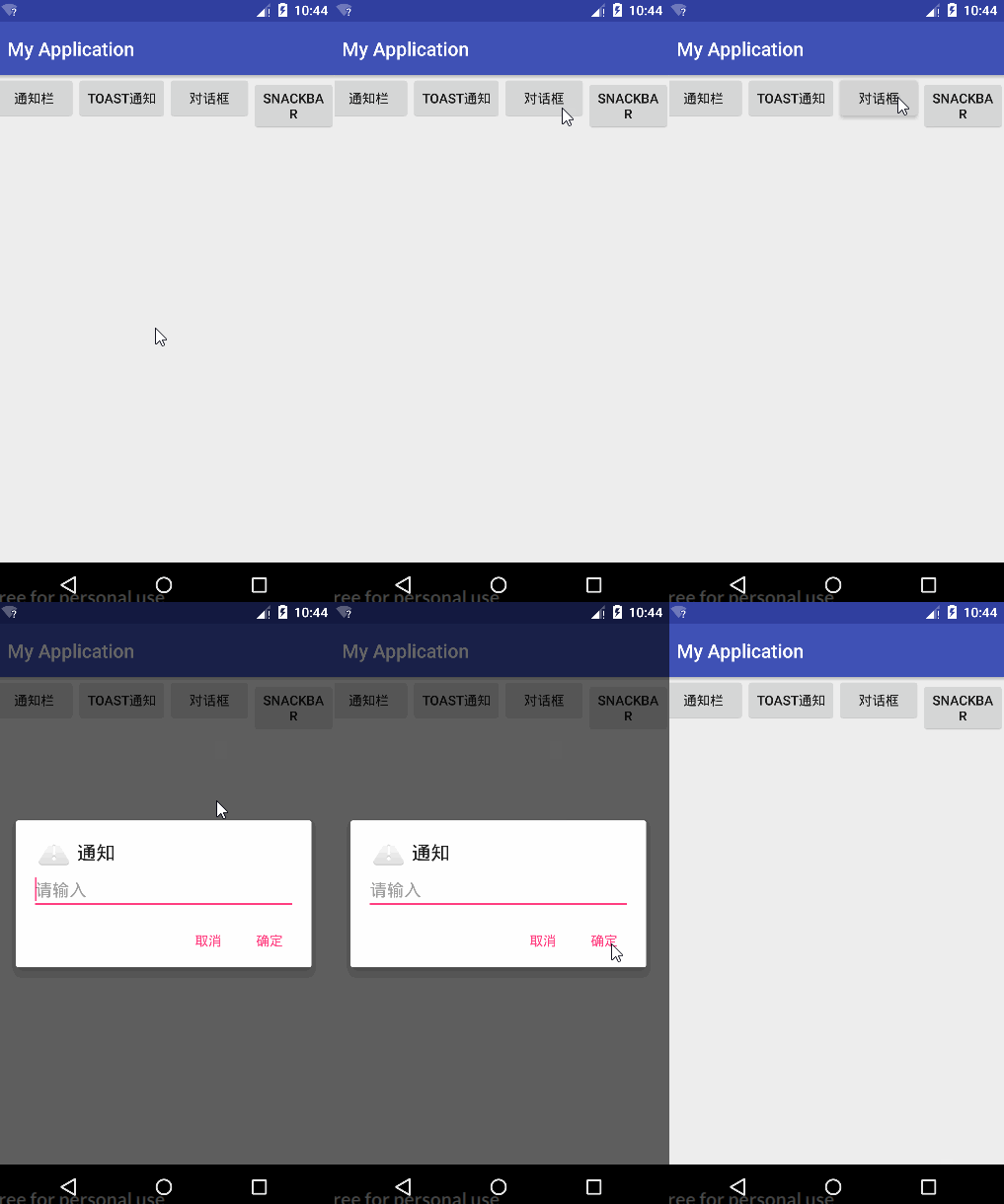
Effect Diagrams
-
Basic Dialog
-
Dialog with Input Field
-
Dialog with Radio Buttons

-
Dialog with Checkboxes
Toast
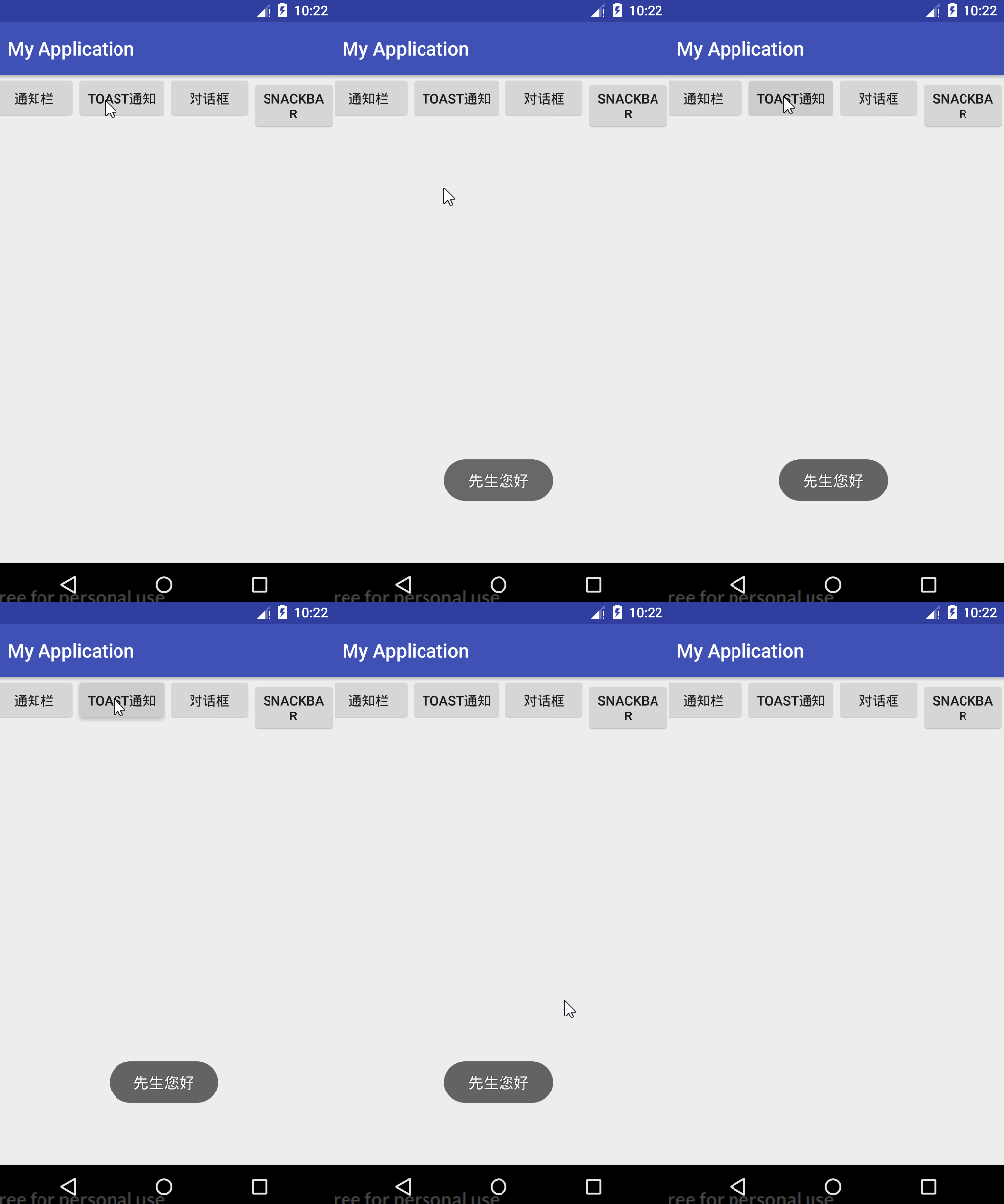
private Toast toast;

public void showToast(String content) {
    // Avoid multiple Toasts by reusing the same instance
    if (toast == null) {
        toast = Toast.makeText(this, content, Toast.LENGTH_SHORT);
    } else {
        toast.setText(content);
    }
    toast.show();
}
Effect Diagram
(Clicking repeatedly shows only one Toast instance)
Snackbar
Add Dependency
compile 'com.android.support:design:25.3.1'
Code Example
public void showSnackbar() {
    // First parameter: any view ID in the current layout
    Snackbar snackbar = Snackbar.make(findViewById(R.id.activity_main), "This action is not important", Snackbar.LENGTH_LONG);
    // Add an action button
    snackbar.setAction("OK", new View.OnClickListener() {
        @Override
        public void onClick(View v) {
            // Logic for the action button
        }
    });
    // Display the Snackbar
    snackbar.show();
}
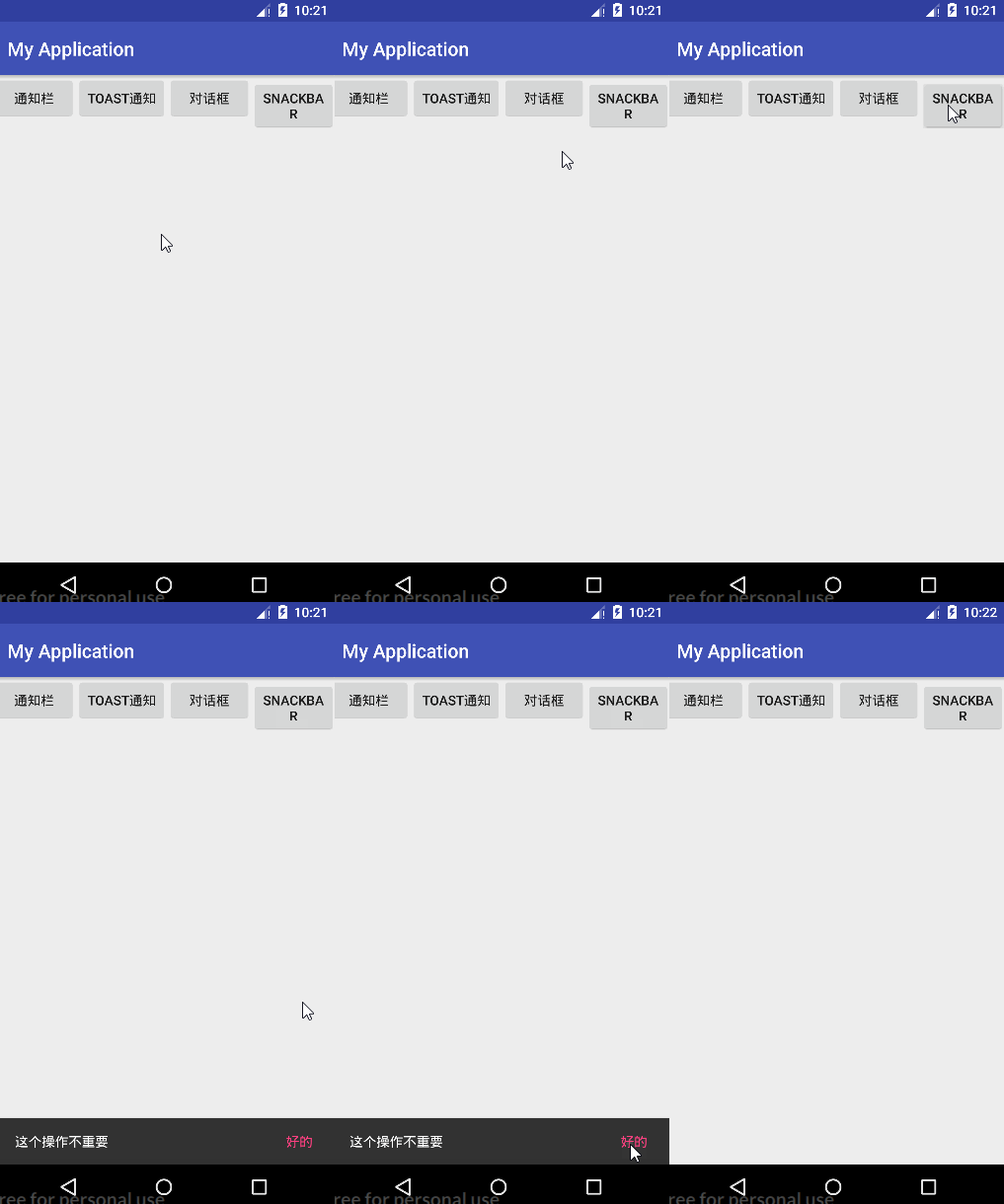
Effect Diagram